
Introduction
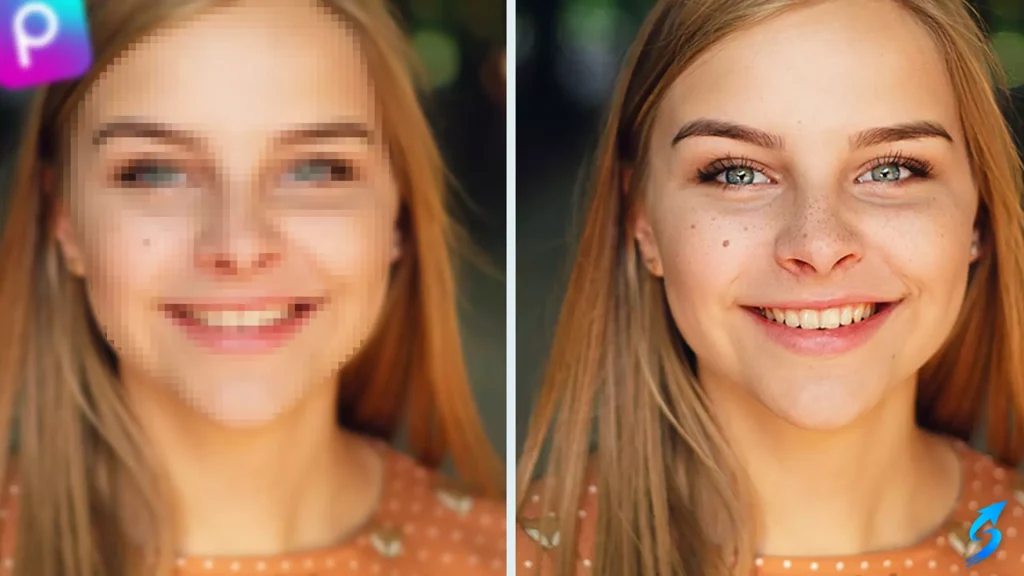
How to Remove Photo Blur with PicsArt? Clarity is one of the most influential factors in modern digital imagery, whether the photograph is intended for personal use, business communication, online promotion, or social media publication. Blurry images reduce the perceived quality of visual content and often fail to convey the intended message.
As visual standards continue to rise across digital platforms, the need for accessible editing tools capable of restoring clarity has become more significant. PicsArt, as one of the most widely used editing applications, provides users with a practical and highly efficient solution for enhancing image sharpness. Its features are versatile and suitable for both beginners and advanced editors who require a smooth and professional workflow. In this guide, we examine how users can effectively Remove photo blur with PicsArt, explore the reasons behind image blur, and review the best editing techniques to achieve high-quality results.
Understanding the Nature of Image Blur
Image blur can occur for several reasons, and understanding these causes helps in choosing the appropriate editing method. One of the most common reasons is camera shake, which happens when the device moves slightly during capture, especially in low-light conditions that require slower shutter speeds.
Another reason is incorrect focus, where the camera locks onto an unintended subject or fails to adjust to moving objects. Low resolution is another factor, as photos taken with older devices or heavy zoom often lack sufficient pixel detail. Additionally, motion blur caused by fast-moving subjects can result in soft or unclear images. Recognizing the source of the blur ensures that the right tools within PicsArt are applied for effective correction.
Why PicsArt Is a Reliable Tool for Blur Removal
PicsArt is widely appreciated for its balance between simplicity and advanced functionality. The platform provides access to powerful AI-supported editing tools without overwhelming the user. This makes it especially suitable for individuals who want to improve their images without needing professional-grade software.
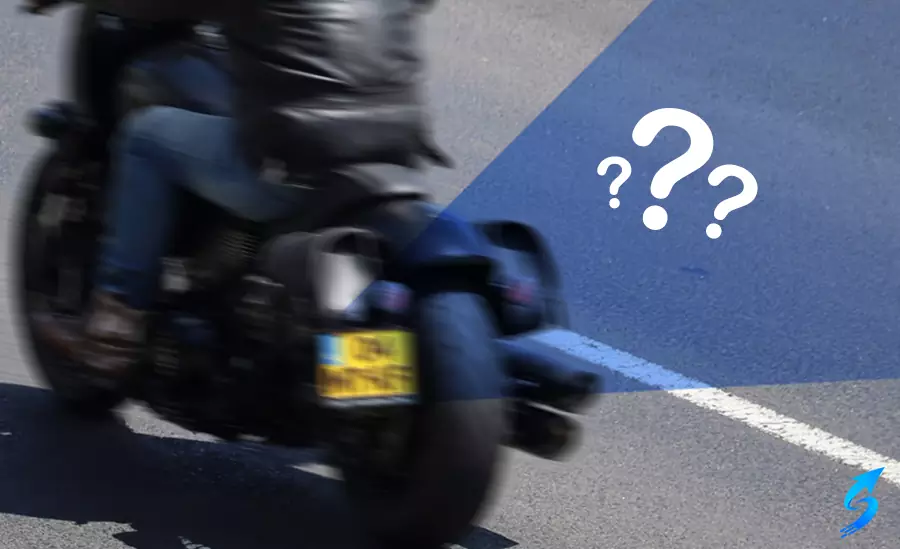
The app includes tools that enhance clarity, adjust contrast, refine textures, and sharpen specific details. Its AI engine is capable of automatically detecting imperfections and applying corrections with impressive accuracy. This combination of accessibility and precision is what enables users to efficiently Remove photo blur with PicsArt and achieve results comparable to professional editing software. The app’s availability on multiple platforms, including Android, iOS, and Windows, further enhances its usability for a wide audience.
How to Remove Blur Using PicsArt
Removing blur with PicsArt involves a smooth and intuitive process. After opening the application and importing the image, users can access the editing tools designed to enhance clarity. The Sharpen tool is one of the primary features for improving image detail. By increasing edge contrast, it restores definition and makes the image appear clearer. It must, however, be used carefully to avoid introducing grain or artificial noise. The Clarity adjustment is another essential feature, as it strengthens mid-tone contrast and improves the overall structure of the photograph.
When these two tools are applied together, the effect becomes more balanced and natural. PicsArt also offers an AI Enhance feature, which automatically evaluates the photo and applies several corrective adjustments simultaneously. This is particularly helpful for images with significant blur or low resolution. Manual adjustments such as altering contrast, saturation, and exposure can further refine the image. When working with photos where only specific areas are blurred, selective editing tools allow users to sharpen only the necessary regions, resulting in a more controlled and polished final product.
Enhancing Low-Resolution or Highly Blurred Photos
Some photos require additional enhancement due to limitations in resolution or the severity of the blur. PicsArt’s AI Upscale tool is effective in increasing the resolution of a low-quality image by generating new pixel information. This helps restore clarity in images that appear pixelated or soft. For outdoor images affected by environmental conditions such as fog or haze, the Dehaze adjustment can significantly improve visibility and color depth.
In certain cases, lens distortion—especially in wide-angle photos—can contribute to an overall soft appearance. Applying lens correction before sharpening can help achieve a more accurate and natural result. These advanced features enable users to address a broad range of blur issues and further support their ability to Remove photo blur with PicsArt in a professional and efficient manner.
Tips for Achieving Better Results
Achieving a clear and sharp image often requires more than relying on a single tool. Combining several adjustments gradually usually produces the best results. For example, applying slight sharpening followed by moderate clarity enhancement creates a balanced effect that avoids over-processing. Users should pay attention to noise levels, as excessive sharpening may result in grainy textures.
Starting with the highest-quality version of the image is always recommended, as it allows the editing tools to work more effectively. In cases where certain blurred areas are not essential to the main subject, cropping the image can help maintain a professional appearance. For creative projects, filters may also be used to mask imperfections while adding artistic value. These techniques collectively make it easier to Remove photo blur with PicsArt and achieve a polished outcome suitable for publication or personal use.
Additional Considerations for Professional Use
When editing photos for business purposes, such as product photography, marketing materials, or portfolio images, maintaining consistency across all visuals is important. PicsArt allows users to save custom presets that replicate specific editing styles, ensuring uniformity. This becomes especially useful when managing multiple images taken under different lighting conditions or environments. Export settings also play a crucial role.
Saving the edited photo in high resolution with minimal compression preserves details and ensures compatibility with professional platforms, including websites and printed materials. A careful approach to editing, paired with PicsArt’s versatile tools, supports the production of visually appealing and high-quality imagery.
Conclusion
High-quality images are an essential part of effective communication in today’s digital world. The ability to recover clarity from a blurred photograph can significantly enhance the overall impact of visual content. PicsArt offers a powerful yet user-friendly solution for improving image sharpness and restoring detail.
With AI-driven tools, precise manual adjustments, and advanced enhancement features, users can confidently Remove photo blur with PicsArt and transform unclear images into professional and visually appealing results. Whether the goal is to refine personal photos, develop commercial content, or prepare images for online publication, PicsArt provides all the necessary tools to achieve clarity and quality. By applying the methods described in this guide, users can ensure that their visual content remains sharp, expressive, and fully aligned with modern aesthetic expectations.