
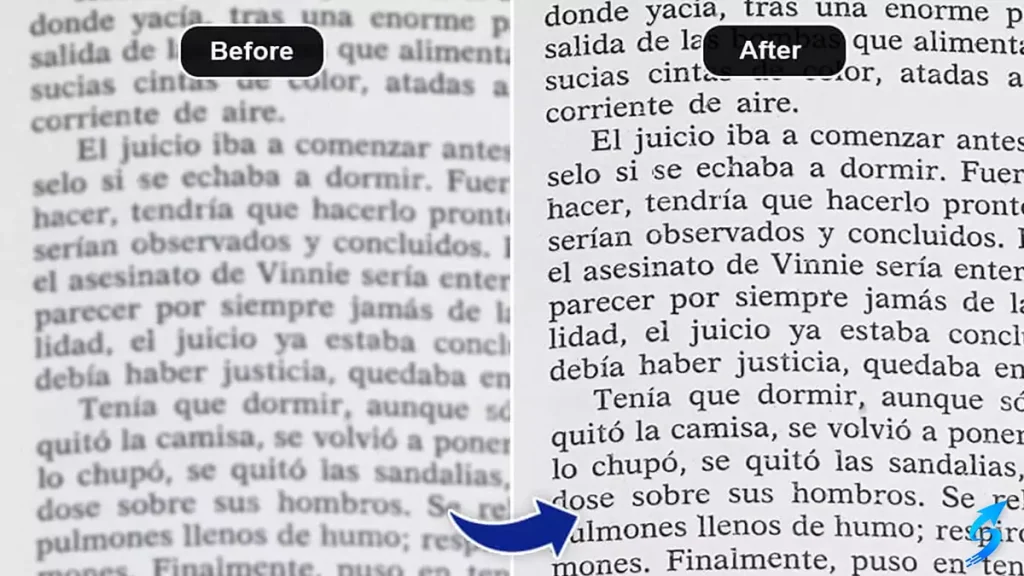
How to Effectively Deblur Scanned Documents for Clear and Accurate Results
Digitization has become a vital part of both personal and professional life. From academic research papers to legal contracts, most documents are stored in digital formats for ease of access and preservation. However, one common challenge many face is dealing with blurred or low-quality scans. Poorly scanned pages not only look unprofessional but also hinder readability and accuracy during text recognition. This is where deblurring scanned documents comes into play.
In this article, we’ll explore what causes blurry scanned documents, why clarity is important, and the most effective methods to restore sharpness and readability.
Why Do Scanned Documents Become Blurred?
Before applying any solution, it’s important to understand the root causes of blurry scans. Some common reasons include:
-
Incorrect Scanner Settings
Low resolution or wrong file format selection can reduce clarity. For example, scanning at 72 dpi is sufficient for web images but not for text documents that need crispness. -
Movement During Scanning
Slight shakes or misalignment during the scanning process can create motion blur. -
Worn or Dirty Scanners
Dust on the scanner glass or worn-out parts can lead to smudged, unclear output. -
Old or Faded Documents
Physical documents with faded ink, smudges, or paper degradation often produce poor scans.
Understanding these issues is the first step toward finding the right deblurring solution.
The Importance of Clear Digital Documents
Why go through the trouble of fixing blurry files? Here are some key reasons:
-
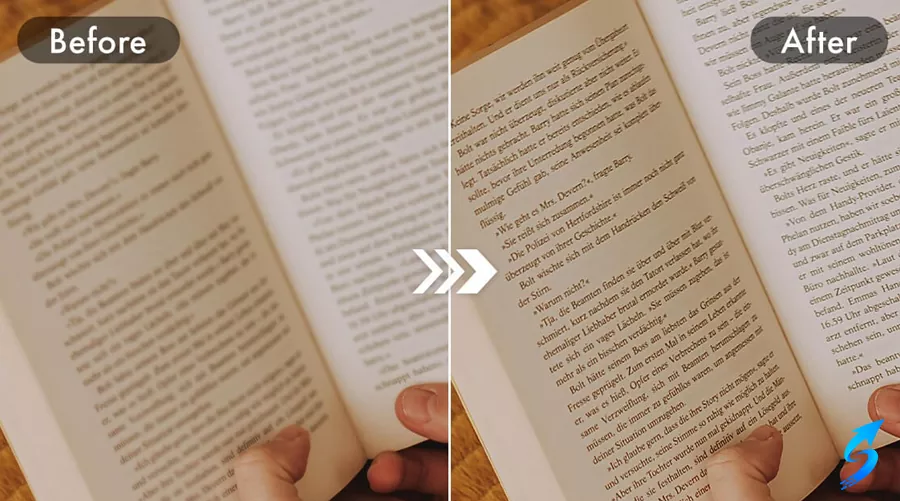
Readability: Clear text ensures that readers don’t strain their eyes.
-
Professionalism: Businesses, universities, and government institutions require legible, professional records.
-
OCR Accuracy: Optical Character Recognition (OCR) software performs best when the scanned input is sharp and well-contrasted.
-
Preservation: Digital archives with clear scans will remain usable and valuable for decades.
Techniques for Deblurring Scanned Documents
There are several approaches to restoring clarity in scanned files, ranging from simple fixes to advanced AI-driven solutions.
1. Image Editing Software
Programs like Adobe Photoshop or GIMP allow users to apply sharpening filters to scanned pages. Adjusting contrast, brightness, and sharpness can greatly improve readability. However, this method requires manual effort and might not be suitable for large document collections.
2. Optical Character Recognition (OCR) with Preprocessing
OCR software often includes built-in image enhancement tools. By preprocessing the scan—removing noise, adjusting text boundaries, and increasing contrast—the OCR system can better identify text, effectively acting as a deblurring scanned documents solution.
3. AI and Machine Learning Tools
Recent advances in artificial intelligence have brought specialized tools that automatically restore text clarity. AI-based systems detect blurred patterns, reconstruct sharp edges, and even predict missing text strokes. These solutions are highly effective for archival and legal purposes.
4. Scanner Hardware Adjustments
Sometimes, prevention is better than correction. Using a high-resolution scanner, setting the correct dpi (at least 300 dpi for documents), and ensuring the scanner glass is clean can eliminate the problem at its source.
Step-by-Step Guide to Deblurring Scanned Documents
If you want a practical workflow, here’s a simple yet effective method:
-
Check the Original Scan
Re-scan the document at a higher resolution if possible. -
Preprocess the Image
Crop unwanted areas, remove shadows, and enhance brightness and contrast. -
Apply Sharpening Filters
Use filters like “Unsharp Mask” or “Smart Sharpen” in editing tools to refine edges. -
Run OCR Software
Let the OCR convert the scan into searchable, editable text. Many OCR tools come with in-built correction features. -
Proofread the Output
Even after deblurring, always check the document manually for accuracy.
Tools You Can Use
Here are some popular solutions for improving scanned documents:
-
Adobe Acrobat Pro: Offers OCR and editing options.
-
ABBYY FineReader: Known for high OCR accuracy and preprocessing tools.
-
ScanTailor: An open-source tool for cleaning and sharpening scanned pages.
-
Topaz Gigapixel AI: Uses machine learning to upscale and enhance blurred text.
Best Practices to Avoid Blurry Scans in the Future
Instead of spending time fixing issues later, you can adopt preventive strategies:
-
Always scan at 300 dpi or higher for text documents.
-
Use grayscale or black-and-white mode instead of color when possible, as it increases contrast.
-
Keep scanner glass clean and dust-free.
-
Ensure the document lies flat on the scanner bed without folds or wrinkles.
-
Use proper lighting and positioning when scanning via mobile apps.
Conclusion
In this article from Superresolution, we explored another important topic. Clarity is everything when it comes to digital documents. Whether you’re a student preserving research material, a lawyer scanning contracts, or a business archiving reports, readable scans are crucial. By applying the right techniques, tools, and preventive measures, deblurring scanned documents becomes an efficient process that ensures your digital files remain sharp, accessible, and professional.