
Introduction 1
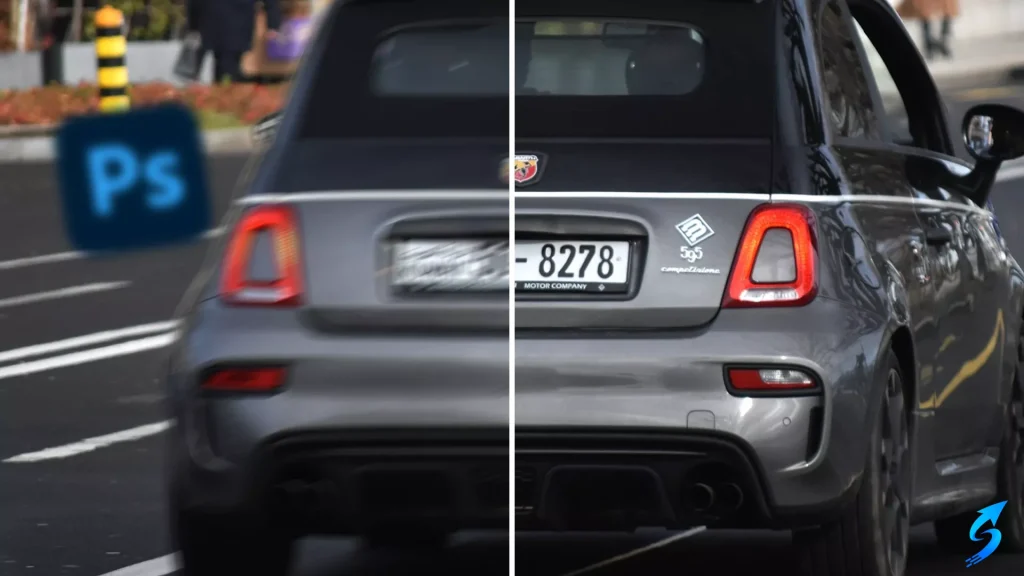
In today’s digital world, clear vehicle images are essential for various purposes, such as traffic management, vehicle identification, and legal documentation. However, due to motion or camera focus issues, car plates often appear blurry in photographs. Learning how to remove car plate blur with Photoshop can save time and improve image clarity for professional and personal use.
Introduction 2
Photoshop, as one of the most versatile image editing tools, offers advanced techniques to correct blurry details, including car license plates. By understanding these techniques, users can effectively restore image sharpness while maintaining a natural appearance. This article provides a comprehensive guide on how to remove car plate blur using Photoshop.
Understanding the Causes of Car Plate Blur
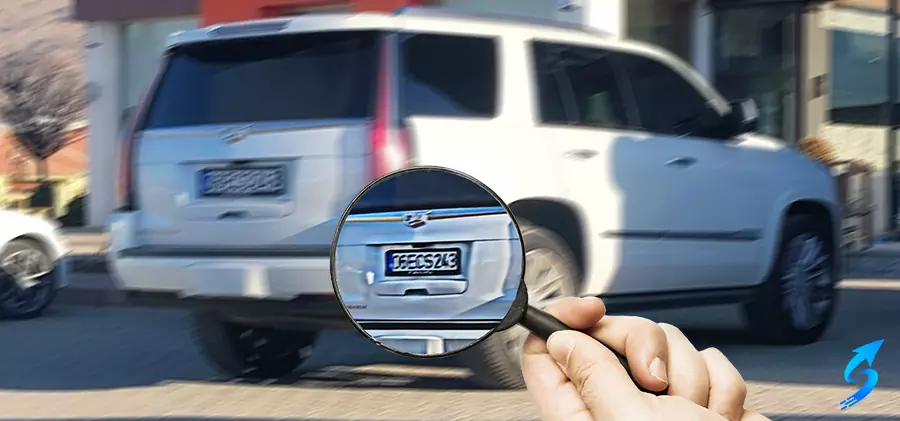
Before diving into Photoshop techniques, it is crucial to understand why car plates become blurry. Common causes include camera shake, low shutter speed, and insufficient lighting. Addressing the underlying cause during image capture is important, but Photoshop provides powerful tools to enhance images even after they have been taken.
Step-by-Step Guide to Remove Car Plate Blur with Photoshop
-
Open the Image – Launch Photoshop and open the photo containing the blurry car plate.
-
Duplicate the Layer – To protect the original image, duplicate the background layer.
-
Apply Smart Sharpen – Go to Filter > Sharpen > Smart Sharpen. Adjust settings to enhance the details of the plate without introducing noise.
-
Use the High Pass Filter – Apply a High Pass filter for finer edge details. Set the layer blend mode to Overlay or Soft Light for optimal results.
-
Adjust Contrast and Brightness – Fine-tune contrast and brightness to make the plate more readable.
-
Manual Retouching – For extreme blur, use the Pen Tool or Brush Tool to manually refine edges and characters.
By following these steps, you can successfully improve readability while preserving image quality. The technique is ideal for users who need to correct license plate visibility for documentation or professional use.